Why Do Two Mac Monitors Mirror? Anker A210C, MST, Thunderbolt and DisplayLink Explained
Two video connectors do not guarantee two independent desktops. Use the Anker A210C to understand display modes, transport technologies and the checks to make before buying.
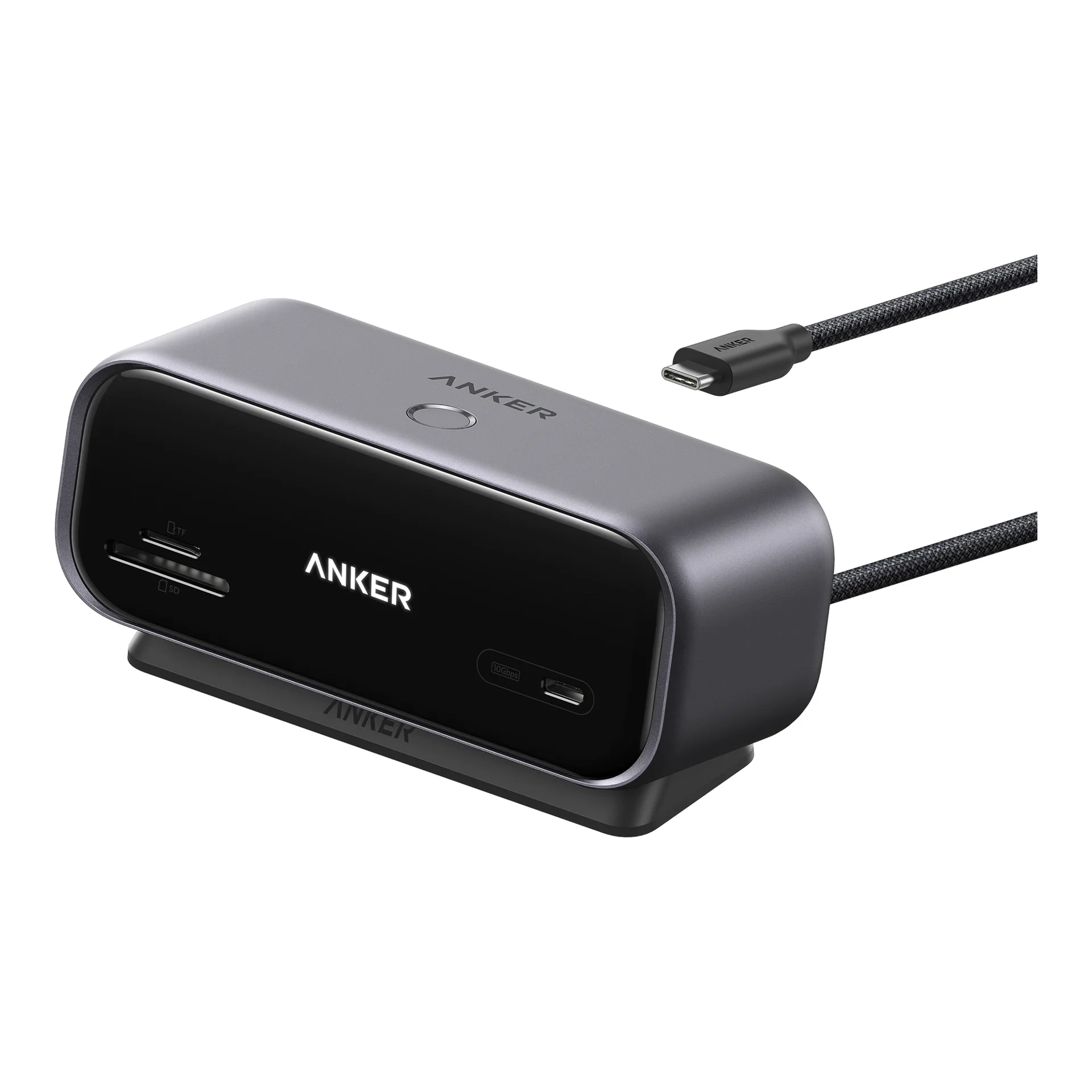
Checked October 20, 2026 (Taipei). This is a documentation-based guide, not a hands-on review; unverified models, firmware or setups are not guaranteed. A210C refers to the Anker Nano USB-C Hub / Desktop USB-C Hub (10-in-1, 240Hz, Smart Display), not every Anker hub.
Which screens are affected?
Anker documents different behavior by operating system: its A210C can drive two independent external screens on Windows through MST, while on macOS the two external screens mirror each other. This does not mean Macs cannot use external monitors, nor does the built-in display have to match them—in other words, the external monitors can still extend the Mac's built-in screen (forming an "A + B + B" layout), but two monitors connected through the same A210C cannot act as separate extended desktops (no "A + B + C" layout) (Source: Anker A210C compatibility and FAQ).
| Mode | Plain-language meaning | Two independent workspaces? |
|---|---|---|
| Mirroring | Both screens repeat the same content | No |
| Extension | Desktop extends to another screen with separate windows | Yes, provided each external display is independently extended |
| A210C dual outputs on macOS | The two external screens mirror each other (can still differ from the built-in screen) | No, the two external monitors cannot serve as two separate extended desktops |
The first two rows explain terminology; the third reflects Anker's documented limitation, not hands-on testing by our site.
Separate the connector from the technology
- USB-C describes a connector shape, not a guaranteed capability. DisplayPort Alt Mode is one way to carry video over USB-C; you still need to verify the host port, hub, cable and monitor individually (Source: VESA DisplayPort FAQ).
- MST carries multiple video streams over a single DisplayPort source connection. Compatible MST hubs or daisy-chained monitors can distribute those streams, but host, OS and product support still govern the outcome—port count never replaces a compatibility chart (Source: VESA: One DP Output, Multiple Video Streams).
- Thunderbolt is a separate connection technology, not a switch that upgrades an arbitrary dual-HDMI/DP hub. Even if your Mac has Thunderbolt ports, plugging in the A210C remains bound by the A210C's own specification. This is a spec-based buying inference for this hub, not a verdict on all Thunderbolt docks.
How to choose if you need two different external screens on a Mac
Start by checking your exact Mac model and Apple silicon chip, then verify Apple's official limits on external display count, resolution and refresh rate. Where native support allows it, evaluate connecting displays separately or choosing a dock whose manufacturer explicitly documents dual extended displays for that Mac—do not rely on "Thunderbolt" or "dual display" labels alone (Source: Apple display support guide).
DisplayLink is a different hardware-and-software route. Its official installation guide requires both a DisplayLink-based device and DisplayLink Manager, along with macOS screen-recording permission. Installing the app alone will not upgrade a non-DisplayLink hub; if you consider a DisplayLink dock, check its own supported refresh rates, macOS versions and constraints rather than carrying over the A210C's 240Hz headline figure (Source: DisplayLink Manager for macOS guide).
Other purchase conditions not to miss
Beyond macOS dual-display mirroring, the purchase notices on the Anker Nano USB-C Hub (A210C) product page highlight several key specifications: video output works only through HDMI and DisplayPort (front USB-C and USB-A ports are data-only, and the rear PD-IN port is for charger input only); dual 2K/240Hz requires a host USB-C port supporting DisplayPort 2.1 with DSC 3:1; pass-through charging accepts up to 100W PD-IN but delivers up to 80W to the laptop (charger not included); and Linux is listed as incompatible. Charger recommendations also differ by region—Anker's US page recommends a 65W+ charger, while Anker Japan recommends 100W+—so follow the guidance for the market and unit you buy rather than blending them into a single global minimum (Sources: Anker US product page, Anker Japan product page).
Four questions before ordering
- Do I need two external monitors showing different desktops, or is mirroring between them enough?
- Are my exact Mac/PC model and operating system covered by the manufacturer's compatibility notes?
- Have I verified my target resolution, refresh rate, cables and power adapter together rather than looking only at headline maximums?
- If I choose an alternative expansion technology, am I comfortable with its driver, permission and support requirements?
This guide explains technical differences and verification steps; it does not guarantee any untested third-party product or wiring combination.